


How to Set Up a Retro Console at Home in Malta

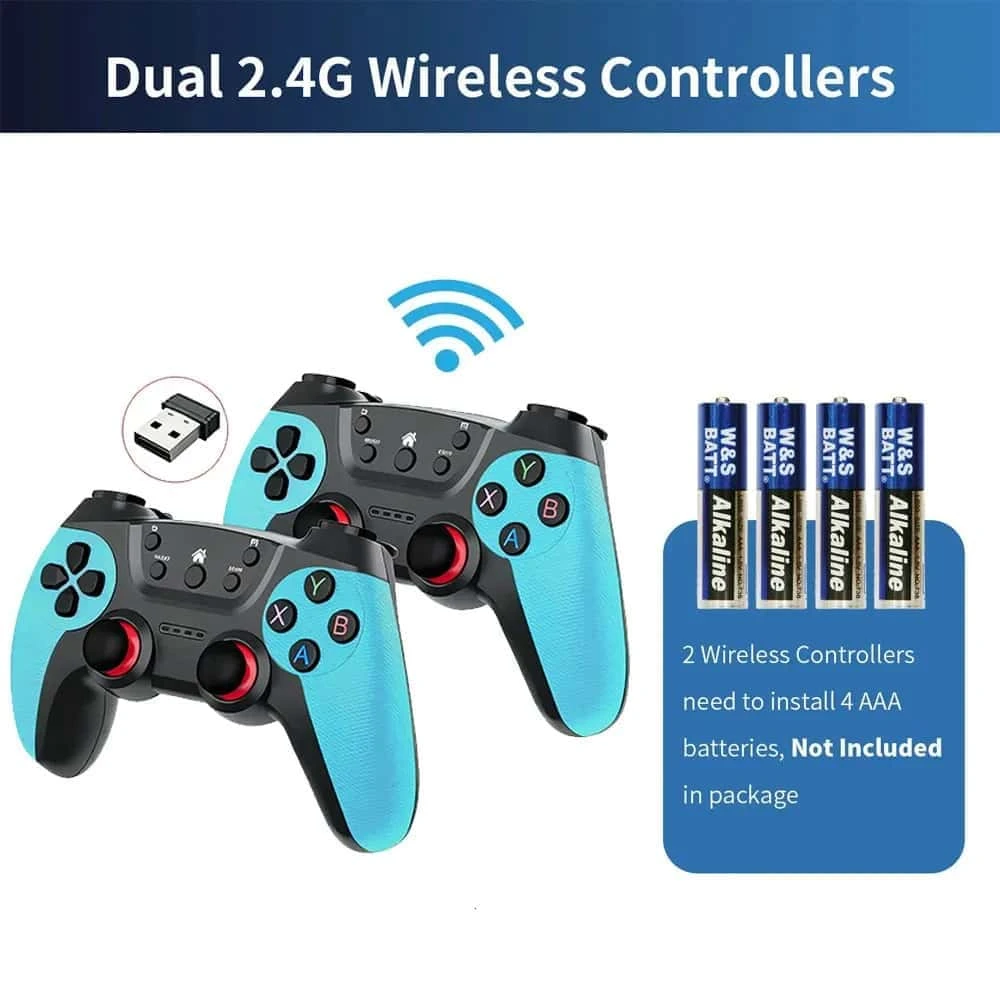
If you have just unboxed the U36 and want to know how to set up a retro console without any fuss, this guide takes you through it from the first cable to the first game. The good news is that there is very little to do: the games are already on the stick, so there is nothing to download or install.
Below you will find what you need before you start, a step by step setup, tips for the wireless controllers and the game menu, fixes for the problems people meet most often, and simple care so the console keeps working for family evenings and holiday visits.
The product in this guide: Wireless Retro Console Malta U36 with 50,000 Games
What Comes in the Box and What You Need
Inside the box you should find four things:
- 1 retro game stick
- 2 wireless game controllers
- 1 HDMI cable
- 1 USB power cable
There are a few things that are not included, and it saves frustration to have them ready before the first game.
- AA batteries. Each wireless controller runs on AA batteries, and they are not in the box. Buy them before you sit down to play, otherwise the controllers will not work at all.
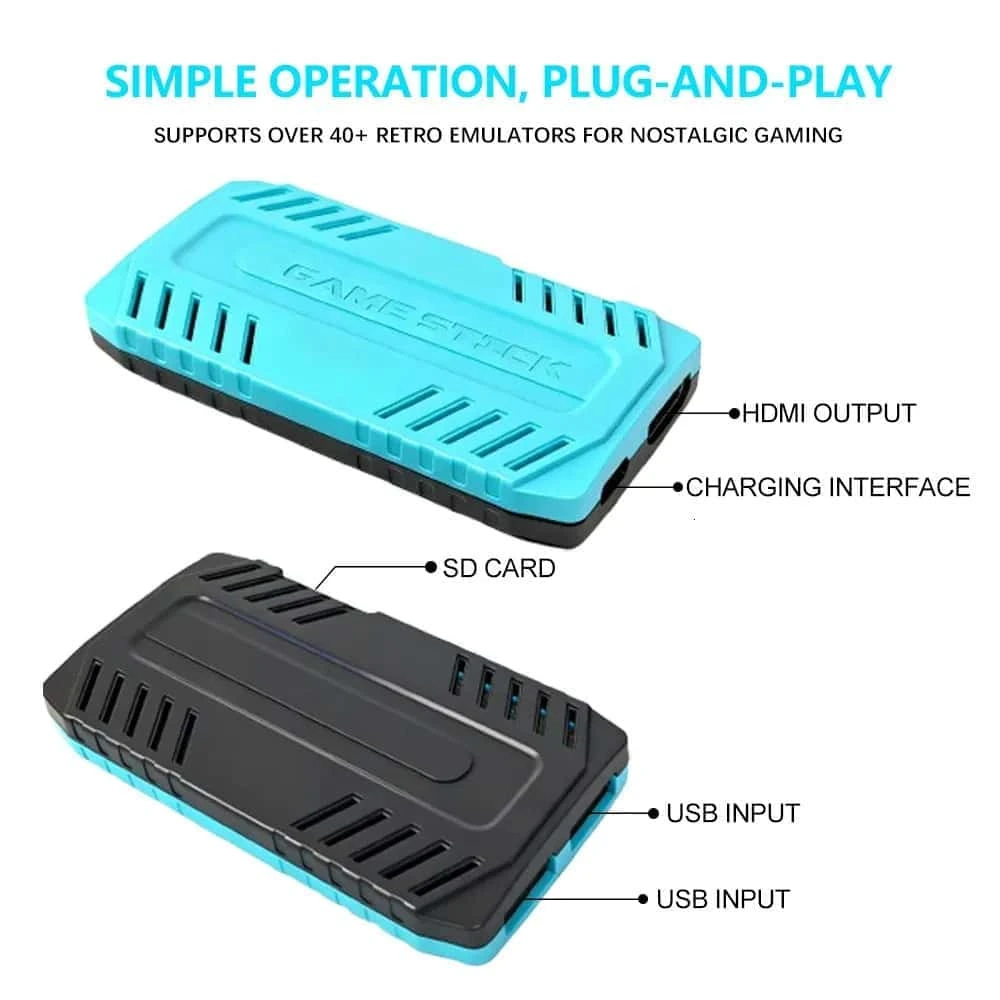
- A USB power source. The stick is powered through the USB cable. You can use a USB port on the TV, or a USB wall adapter like a phone charger. In Malta that means a UK type G plug for our 230 V sockets.
- A free HDMI port on your TV. Most flat screen TVs have at least one. Older tube TVs without HDMI cannot be used.
How to Set Up a Retro Console Step by Step
This is how to set up a retro console like the U36 in a few minutes. Do it with the TV switched off at first, then turn it on at the end.
- Put the batteries in the controllers. Open the battery cover on each controller and fit AA batteries the right way round.
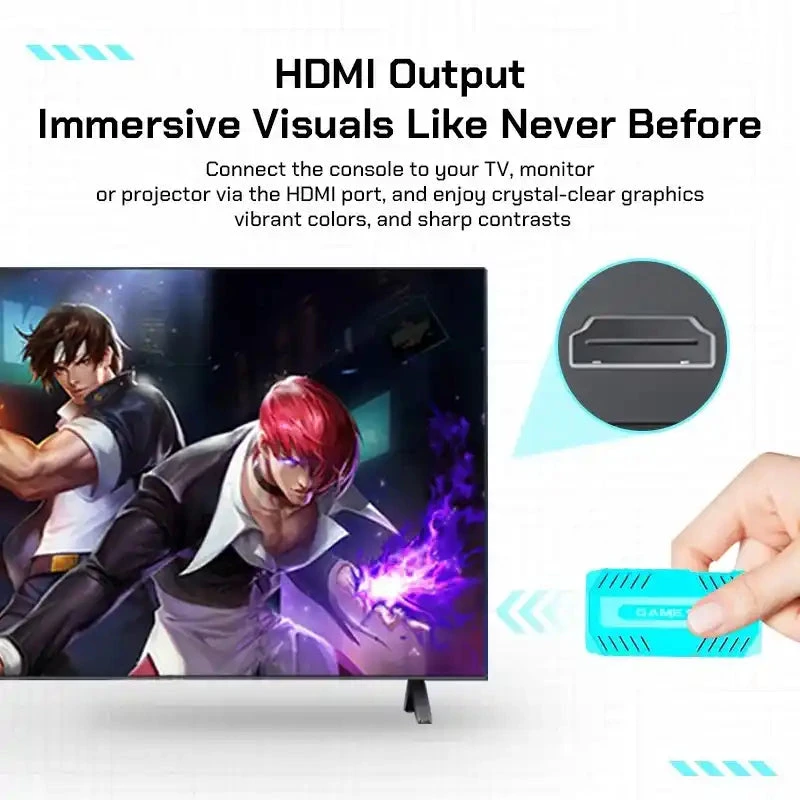
- Connect the stick to the TV. Plug the stick into a free HDMI port on the back or side of the TV. If the port is hard to reach, or the stick would press against the wall, use the included HDMI cable between the stick and the TV.
- Plug in the power. Connect the USB cable to the stick, then to a USB port on the TV or to a USB wall adapter in the socket.
- Switch on the TV and choose the right input. Press the Source or Input button on your TV remote and pick the HDMI port you used, for example HDMI 1 or HDMI 2.
- Wait for the menu. Give the stick a short while to start. The game menu should then appear on the screen.
- Switch on the controllers. Turn them on and press a button to check they respond in the menu.
That is the whole setup. There is no account to create and no internet connection needed, which makes it easy for grandparents or children to manage on their own after the first time.
Getting the Wireless Controllers Ready
The two wireless controllers mean two people can play together from the sofa, with no cables running across the living room floor. In a small flat or maisonette, that also means fewer things to trip over.
A few tips for smooth play:
- Sit in clear view of the TV. Wireless controllers of this type work best without too many objects between them and the stick.
- Keep spare AA batteries. When a controller starts to respond slowly or stops, weak batteries are the most common reason. Rechargeable AA batteries are a sensible choice if you play often.
- Check the button layout. Classic consoles used different button arrangements. In some games the button layout of the controllers can need setting in the menu, so if a jump or fire button feels like it is in the wrong place, look for the controls option before you give up on that game.
- Switch them off after playing. This helps the batteries last longer.
Finding Your Way Around the Game Menu
With a built-in library of 50,000 classic games from several retro consoles, running on several pre-installed emulators, the menu is where you will spend your first few minutes. Emulators are programs that let old console games play on a modern TV.
Some ideas to make it easier:
- Explore by console first. Games are grouped in the menu, so start with the consoles you or your family remember.
- Make a short list. A large collection is fun to browse, but most families end up returning to a handful of favourites. Write down the ones you enjoy so you can find them again quickly.
- Look for two-player games. With two controllers in the box, games where two people play together or against each other are a good way to start a family evening.
- Check games for young children. Have a quick look at what younger players choose, and keep playtime sensible.
On picture quality, the output is HDMI and described as 4K and HD. Classic games were designed with a pixel look, and on a modern TV that style is part of their charm.
See the sizes, pictures and details of the Wireless Retro Console Malta U36 with 50,000 Games.
Common Problems and Simple Fixes
The TV shows a blank screen or No Signal
This is the most frequent question after people learn how to set up a retro console. Check that the TV input matches the HDMI port you used, that the stick is pushed fully into the port, and that the USB power cable is connected at both ends.
The stick keeps restarting or does not turn on
Some TV USB ports do not give enough power for a stick, and some switch off when the TV goes on standby. Try a USB wall adapter in a mains socket instead.
The controllers do not respond
First check that the AA batteries are fitted, fresh and the right way round. Then switch the controller off and on again. If one works and the other does not, swap the batteries between them to see whether the batteries are the cause.
The buttons feel wrong in a game
Look for the control or button settings in the menu and adjust the layout for that game.
The picture is cut off or stretched
Check the picture size or aspect setting on your TV, as this is controlled by the television.
Care, Storage and Safety at Home
A little care keeps the stick and controllers in good shape, especially with the dust and humidity many Maltese homes deal with.
- Keep it off the floor. Dust from building works and sea air can get everywhere. Store the stick, cables and controllers on a shelf or in a drawer, ideally back in their box.
- Avoid damp spots. In winter, do not leave the controllers near a damp outside wall or a window with condensation.
- Keep drinks away. Game nights and fizzy drinks do not mix well with controllers. A small tray on the table helps.
- Remove batteries if storing for weeks. Old batteries can leak and damage the battery contacts.
- Clean gently. Wipe the controllers with a dry or very slightly damp cloth. Never spray liquid onto them.
- Handle cables with care. Pull plugs out by the plug, not the cable, and do not bend the stick when it is in the TV port.
- Let it breathe. On hot summer days, do not cover the stick or squeeze it behind the TV where air cannot move.
Taking It to Gozo or a Relative’s House
The console is compact, lightweight and portable, so it travels well for a Gozo weekend, a holiday flat or a visit to the grandparents. Once you know how to set up a retro console at home, doing it on another TV takes only a minute.
Pack this small kit:
- The stick, both controllers, the HDMI cable and the USB power cable
- A USB wall adapter with a UK type G plug, in case the TV there has no suitable USB port
- Spare AA batteries
Keep everything in a small bag or the original box so the cables do not get lost in a suitcase.
Questions People in Malta Ask
Do I need Wi-Fi or an internet connection to play?
No. The games are built into the stick, so you connect it to the TV by HDMI, plug in the USB power and play. There is nothing to download or install.
Which batteries do the controllers take?
Each wireless controller runs on AA batteries. They are not included, so buy them before the first game.
Can I power it from my TV’s USB port?
Often yes, but some TV USB ports do not give enough power or turn off on standby. If the stick restarts or will not start, use a USB wall adapter with a UK type G plug instead.
Is it hard for grandparents to use?
It is one of the simpler setups. Once you have shown them how to set up a retro console once, they only need to switch on the TV, choose the right HDMI input and pick a game.
Why does a game feel like the buttons are in the wrong place?
Old consoles used different button arrangements. In some games you may need to set the button layout in the menu so the controls feel right.
Where to Buy the Wireless Retro Console Malta U36 with 50,000 Games in Malta
4 Home Malta delivers the Wireless Retro Console Malta U36 with 50,000 Games with its own drivers.
- Delivery in 48 hours across Malta and Gozo
- Cash on delivery
- 2 year warranty